BloodHound : Active Directory Attack Path Reference
What is BloodHound?
BloodHound is an open-source tool used by attackers and defenders alike to analyze Active Directory (and Azure) domain security. It collects a large amount of data about an AD environment and uses graph theory to visually represent relationships between objects : revealing attack paths that traditional enumeration would never surface.
Why it matters: AD access management is extremely complex. A user can reach Domain Admin through a chain of 6 misconfigurations that no individual ACL review would catch. BloodHound surfaces these chains instantly.
Data is gathered by the SharpHound collector (C# or PowerShell from inside the domain) or bloodhound-python (from Linux/remote). The backend is a Neo4j graph database.
Quick Command Reference
| Command | Description |
|---|---|
.\SharpHound.exe -c all --zipfilename domain_bh |
Run SharpHound C# ingestor (all collection methods) |
Invoke-BloodHound -CollectionMethod all -ZipFileName domain_bh |
Run SharpHound PowerShell ingestor |
bloodhound-python -d <DOMAIN> -c All -u <user> -p <pass> -ns <DC_IP> |
Run bloodhound-python from Linux |
sudo neo4j console |
Start Neo4j |
bloodhound --no-sandbox |
Launch BloodHound GUI (Linux) |
Installation
Windows
1. Install Java JDK 11
Download from Oracle JDK 11 and install silently:
.\jdk-11.0.17_windows-x64_bin.exe /s
2. Install Neo4j 4.4.x
Note: Stick with Neo4j 4.4.x : version 5 has severe performance regression issues with BloodHound. See official docs.
Download from Neo4j Download Center, then:
Expand-Archive .\neo4j-community-4.4.16-windows.zip .
.\neo4j-community-4.4.16\bin\neo4j.bat install-service
net start neo4j
3. Download BloodHound GUI
Grab the latest release from github.com/BloodHoundAD/BloodHound/releases.
Note: Your browser or AV may flag the download as malicious : this is expected. Allow it.
Linux
1. Add Neo4j apt source and install
wget -O - https://debian.neo4j.com/neotechnology.gpg.key | sudo apt-key add -
echo 'deb https://debian.neo4j.com stable 4.4' | sudo tee -a /etc/apt/sources.list.d/neo4j.list
sudo apt-get install apt-transport-https
sudo apt-get update
sudo apt install neo4j=1:4.4.16 -y
2. Set Java 11 as active version
sudo update-alternatives --config java
# Select the option corresponding to Java 11
3. Start Neo4j
sudo systemctl start neo4j
# or run as console to check for errors:
sudo neo4j console
Remote access: By default Neo4j only accepts local connections. To allow the BloodHound GUI on a different host to connect, edit
/etc/neo4j/neo4j.confand uncomment:#dbms.default_listen_address=0.0.0.0
4. Download and run BloodHound
unzip BloodHound-linux-x64.zip
cd BloodHound-linux-x64/
./BloodHound --no-sandbox
Configure Neo4j
Navigate to http://localhost:7474/ and log in with neo4j:neo4j.
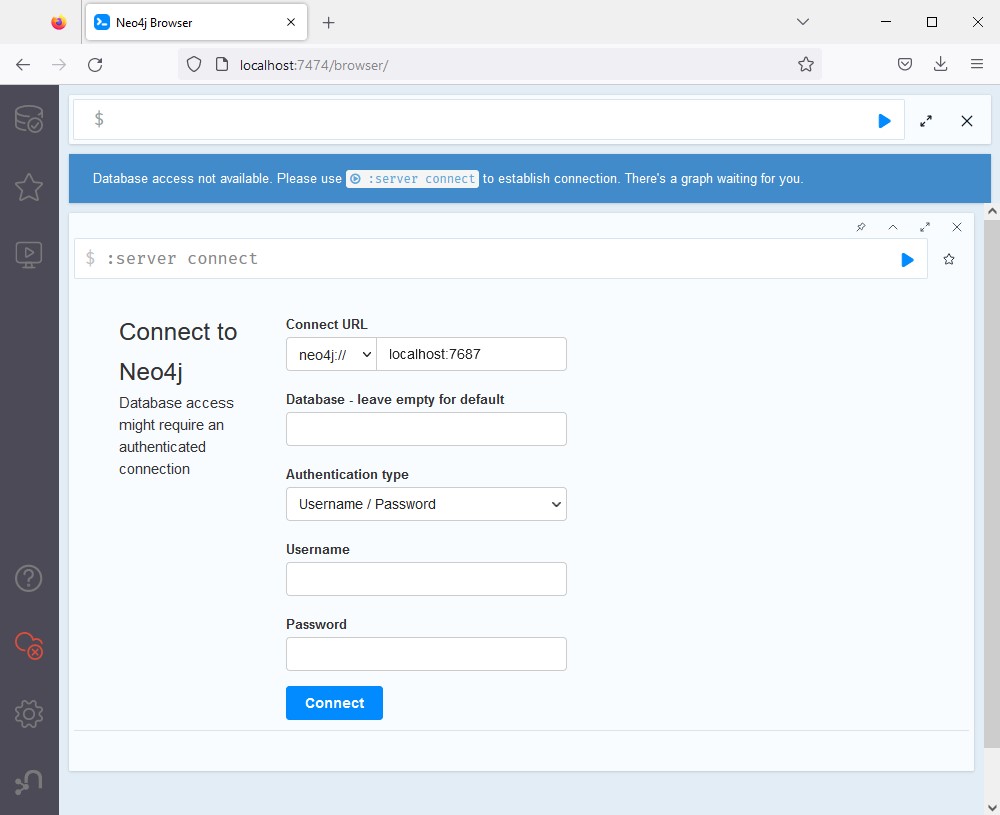
You will be prompted to change the default password.
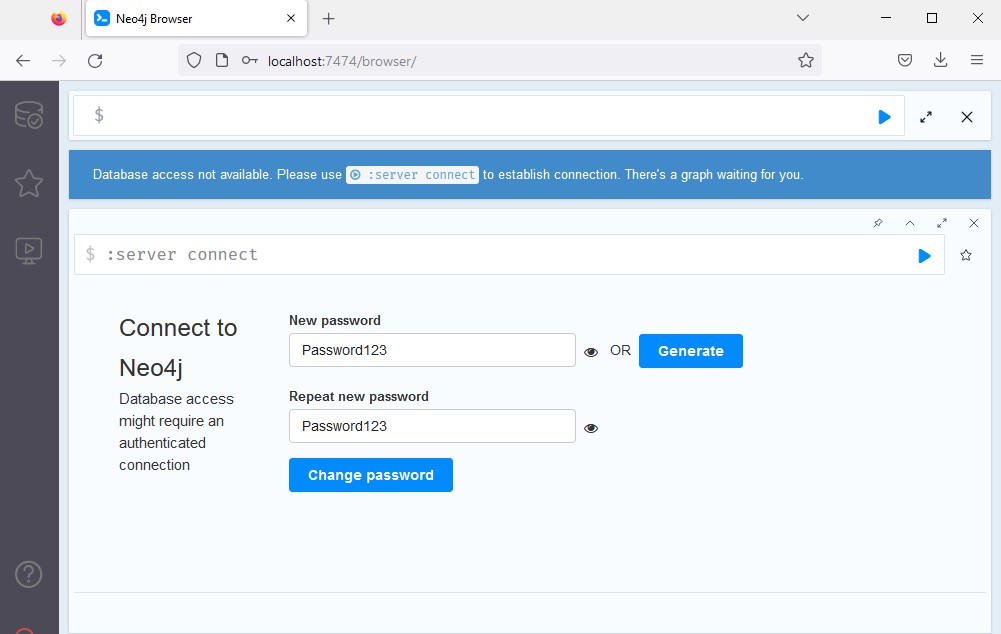
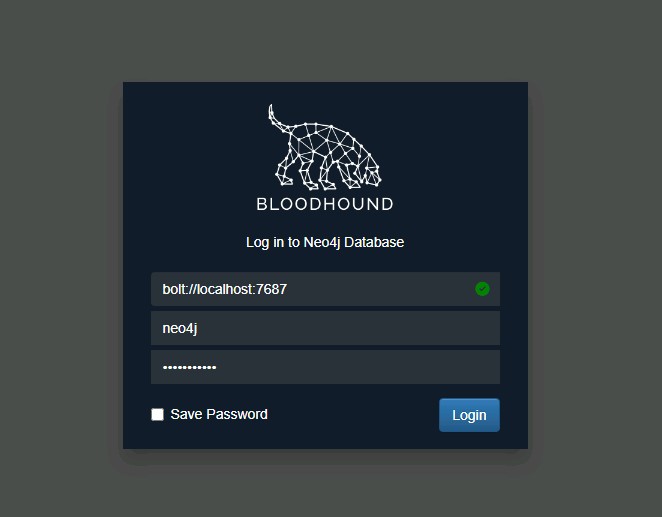
Then launch BloodHound and authenticate with those same credentials:
Recovering Neo4j Access
If you lost access to Neo4j:
sudo systemctl stop neo4j
# Edit /etc/neo4j/neo4j.conf : uncomment: dbms.security.auth_enabled=false
sudo neo4j console
# Navigate to http://localhost:7474 and click Connect (no creds)
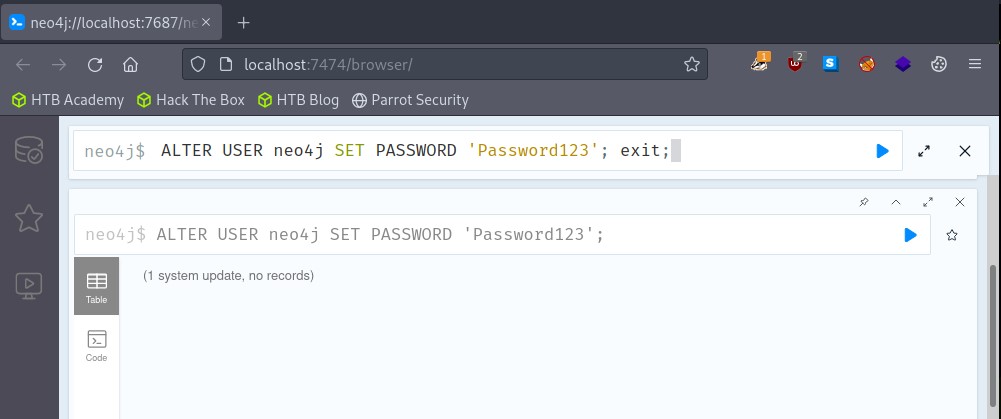
# Run: ALTER USER neo4j SET PASSWORD 'NewPassword';
# Stop Neo4j, re-comment the line, restart
Data Collection
SharpHound (Windows : from inside the domain)
Run without options to use default collection (recommended starting point):
SharpHound.exe
Default collection methods: Group, LocalAdmin, Session, Trusts, ACL, Container, RDP, ObjectProps, DCOM, SPNTargets, PSRemote
This collects: users/computers, group memberships, domain trusts, abusable ACL permissions, OU structure, GPO links, local group memberships, active sessions, and all SPNs.
Note: Collecting local group memberships and sessions from remote machines requires admin rights on those machines. Without it, SharpHound still collects everything from LDAP : which is usually enough.
Common collection flags:
# Collect everything
SharpHound.exe -c all --zipfilename output_name

# Stealth mode : LDAP only, no direct computer contact
SharpHound.exe -c DCOnly

# Collect only ACLs (fast, low noise)
SharpHound.exe -c ACL

# Target specific domain
SharpHound.exe -c all -d corp.local

# Use alternate credentials
SharpHound.exe -c all -d corp.local --ldapusername user --ldappassword pass
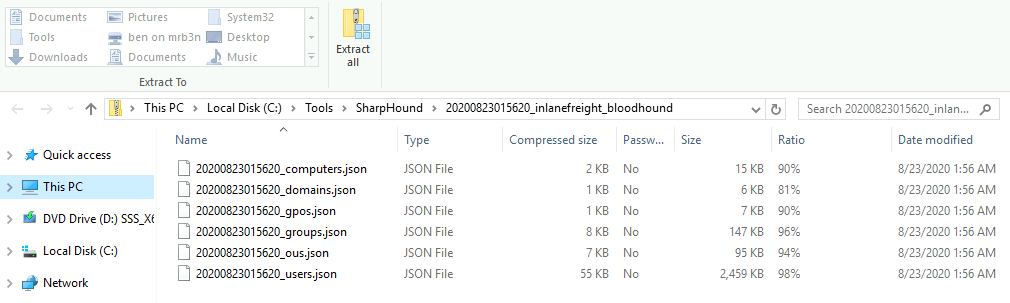
Output: a timestamped .zip file containing JSON files ready for import.
bloodhound-python (Linux : remote collection)
Install: pip install bloodhound
Why use this: You're on Linux and can't run SharpHound. It uses LDAP/RPC remotely with valid credentials. No foothold on a Windows host needed.
# Basic NTLM auth
bloodhound-python -d corp.local -c All -u username -p 'password' -ns <DC_IP>

# Collect only DC data (faster, less noise)
bloodhound-python -d corp.local -c DCOnly -u username -p 'password' -ns <DC_IP>

# Kerberos auth (requires DNS resolution of the DC)
echo "<DC_IP> dc01.corp.local dc01 corp corp.local" | sudo tee -a /etc/hosts
sudo ntpdate <DC_IP>   # sync time : required for Kerberos
bloodhound-python -d corp.local -c All -u username -p 'password' -ns <DC_IP> --kerberos

# Pass-the-hash
bloodhound-python -d corp.local -c All -u username --hashes 'LM:NT' -ns <DC_IP>

# Output as zip
bloodhound-python -d corp.local -c All -u username -p 'password' -ns <DC_IP> --zip
Kerberos tip: Using Kerberos makes your traffic look more like legitimate domain activity than NTLM.
Output files (unzipped by default):
ls
20230112_computers.json  20230112_domains.json  20230112_groups.json
20230112_containers.json 20230112_gpos.json     20230112_ous.json  20230112_users.json
Importing Data into BloodHound
- Start the neo4j service
- Launch BloodHound and log in
- Click the Upload button (top right), select your
.zipor drag-and-drop it directly into the window
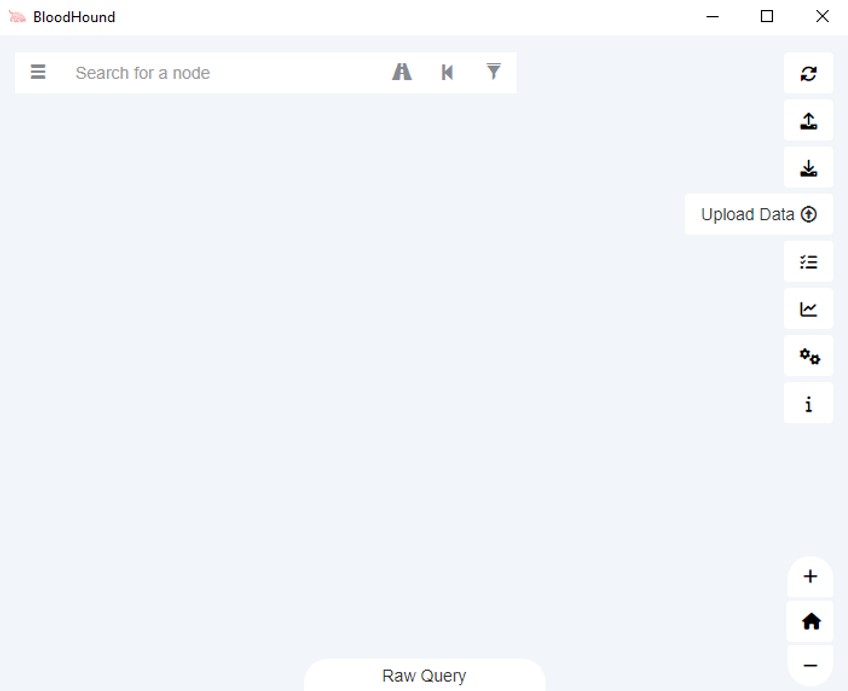
You can upload multiple zip files : BloodHound deduplicates automatically.
Note: Zip files cannot be password-protected.
Navigating the GUI
On first login, BloodHound runs the Find all Domain Admins query automatically.
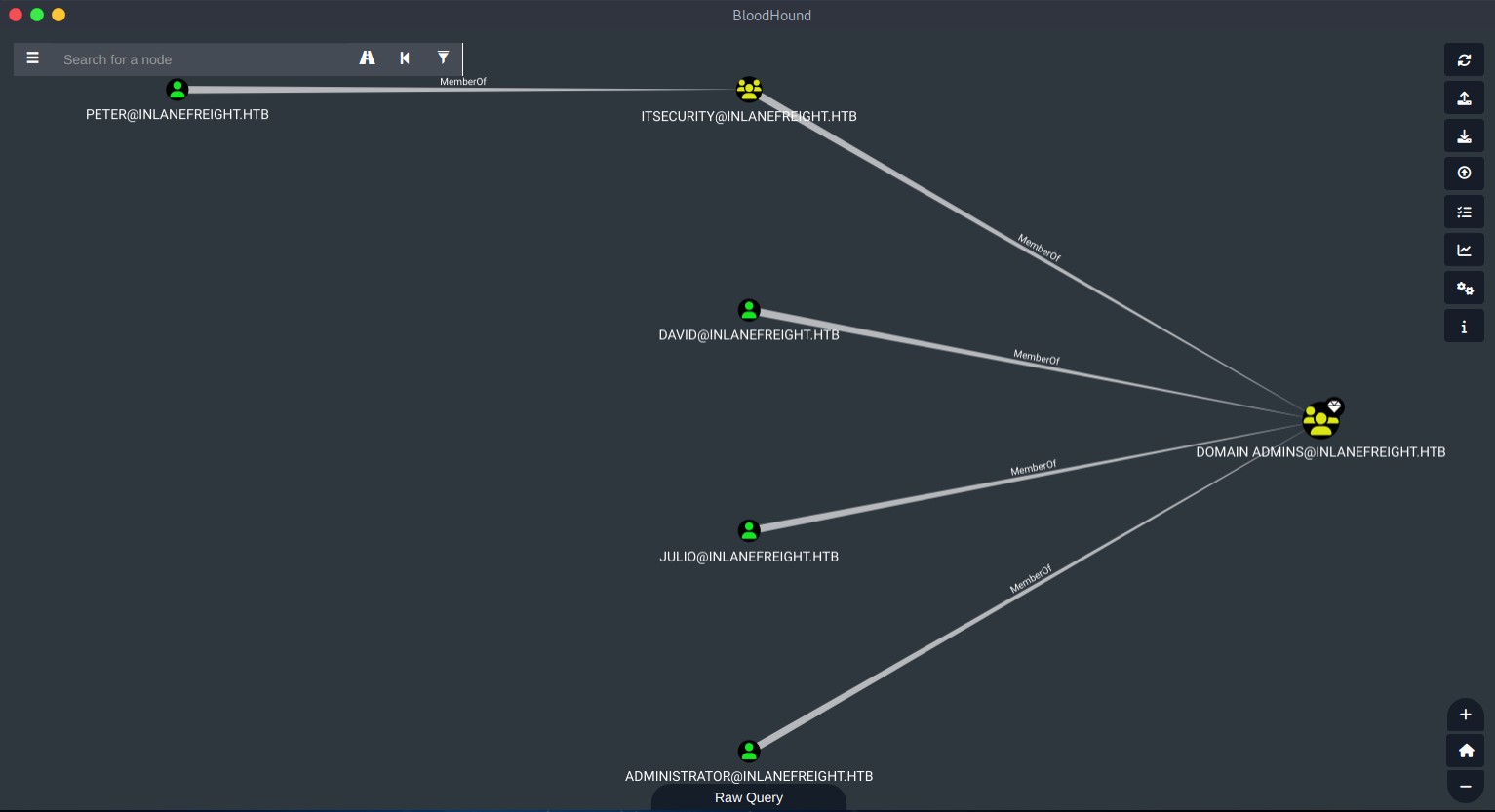
Graph Drawing Area
Right-clicking a node gives you:
| Option | Description |
|---|---|
| Set as Starting Node | Use as the source in pathfinding |
| Set as Ending Node | Use as the target in pathfinding |
| Shortest Paths to Here | Find all paths from any node to this one |
| Shortest Paths to Here from Owned | Find paths from nodes you've marked as owned |
| Mark as Owned | Tag this node as compromised (used in "from owned" queries) |
| Mark as High Value | Tag for use in "paths to high value" queries |
| Edit Node | Add custom properties |
Edges (relationship lines) all have a built-in help menu : right-click any edge to see how to abuse it, with examples and references:

Search Bar Tips
Search by type using prefix syntax:
user:john: find user named johngroup:domain: find groups containing "domain"computer:ws01: find computer WS01
Full list of searchable types:
Active Directory: Group, Domain, Computer, User, OU, GPO, Container
Azure: AZApp, AZRole, AZDevice, AZGroup, AZKeyVault, AZManagementGroup, AZResourceGroup, AZServicePrincipal, AZSubscription, AZTenant, AZUser, AZVM
Pathfinding
Click the pathfinding button, set a source and target node, and BloodHound finds the shortest attack path. You can also filter out specific edges if you want to avoid noisy operations like ForceChangePassword:

Keyboard Shortcuts
| Shortcut | Action |
|---|---|
CTRL |
Cycle node label display (default / always show / always hide) |
Spacebar |
Open spotlight : list all drawn nodes |
Backspace |
Go back to previous graph |
S |
Toggle the info panel |
Node Types Reference
| Node | What it represents |
|---|---|
| Users | Accounts that can log in and access resources |
| Groups | Collections of users/computers for permission assignment |
| Computers | Domain-joined machines |
| Domains | The top-level logical grouping of all resources |
| GPOs | Group Policy Objects that enforce settings on users/computers |
| OUs | Containers for organizing and delegating administration |
| Containers | Organizational containers without admin control (unlike OUs) |
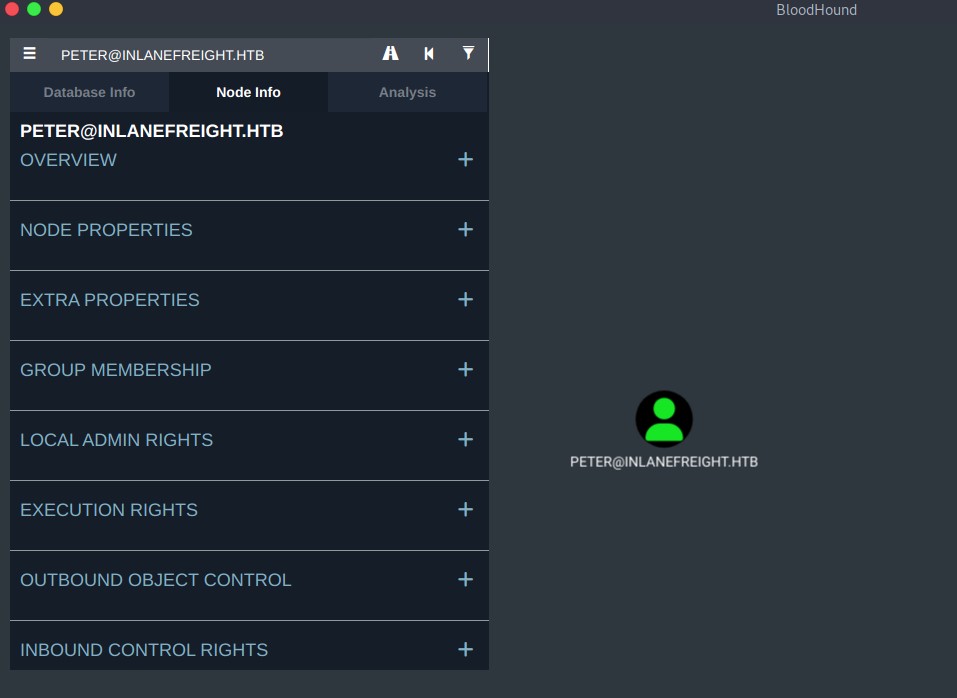
Each node's Node Info tab shows:
| Section | Description |
|---|---|
| Overview | General object info |
| Node Properties | Default AD properties |
| Extra Properties | Non-default string properties (if --CollectAllProperties was used) |
| Group Membership | What groups this object belongs to |
| Local Admin Rights | Where this object has local admin |
| Execution Rights | RDP, DCOM, SQL admin, PSRemote rights |
| Outbound Object Control | What AD objects this node has control over |
| Inbound Control Rights | What has control over this node |
Edges (Attack Relationships)
Edges are the relationships BloodHound draws between nodes. Each one represents an exploitable privilege.
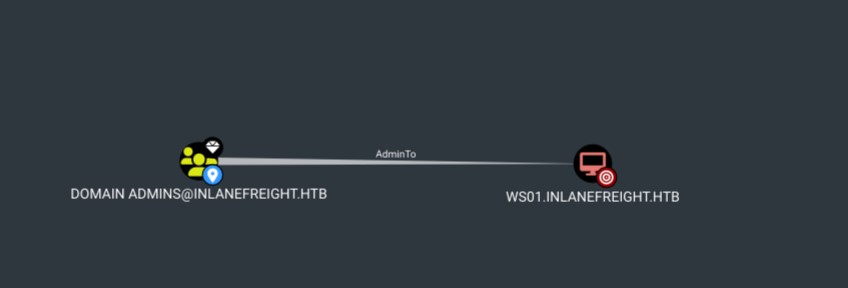
Full list of AD edges:
| AdminTo | MemberOf | HasSession |
| ForceChangePassword | AddMembers | AddSelf |
| CanRDP | CanPSRemote | ExecuteDCOM |
| SQLAdmin | AllowedToDelegate | DCSync |
| GetChanges/GetChangesAll | GenericAll | WriteDacl |
| GenericWrite | WriteOwner | WriteSPN |
| Owns | AddKeyCredentialLink | ReadLAPSPassword |
| ReadGMSAPassword | Contains | GpLink |
Always right-click an edge to open the help menu : it shows exactly how to abuse that relationship, with tools and commands.
Cypher Queries
BloodHound uses Cypher, Neo4j's query language. You can run custom queries in the Raw Query bar at the bottom of the interface.
Enable Query Debug Mode in Settings to see the raw Cypher behind every built-in query.
Cypher Syntax Basics
| Element | Syntax | Example |
|---|---|---|
| Node | (variable:Label) |
(u:User) |
| Property filter | {key: "value"} |
{name: "john@corp.local"} |
| Relationship | -[r:TYPE]-> |
-[r:MemberOf]-> |
| Variable depth | [r:TYPE*1..] |
*1.. = any depth |
| Path | p = (n)-[...]->(m) |
Assign path to variable p |
| Keywords | MATCH, WHERE, RETURN |
Essential Built-in Queries
Shortest paths to Domain Admins:
MATCH p=shortestPath((n)-[*1..]->(m:Group {name:"DOMAIN ADMINS@CORP.LOCAL"}))
WHERE NOT n=m
RETURN p

Power Queries (Save These)
Find all paths from a compromised user to anything : the most useful query during an engagement:
MATCH p = shortestPath((n)-[*1..]->(c))
WHERE n.name =~ '(?i)john.*' AND NOT c=n
RETURN p
Replace
johnwith the username you've compromised. If standard DA queries return nothing, this shows you every other path available from that user : to machines, groups, GPOs, anything.
Use allShortestPaths instead of shortestPath to get every possible route, not just the shortest.
Find specific rights that Domain Users should not have over computers:
MATCH p=(g:Group)-[r:Owns|WriteDacl|GenericAll|WriteOwner|ExecuteDCOM|GenericWrite|AllowedToDelegate|ForceChangePassword]->(c:Computer)
WHERE g.name STARTS WITH "DOMAIN USERS"
RETURN p
Find users with non-blank description fields (passwords stored here is common):
MATCH (u:User)
WHERE u.description IS NOT NULL
RETURN u.name, u.description
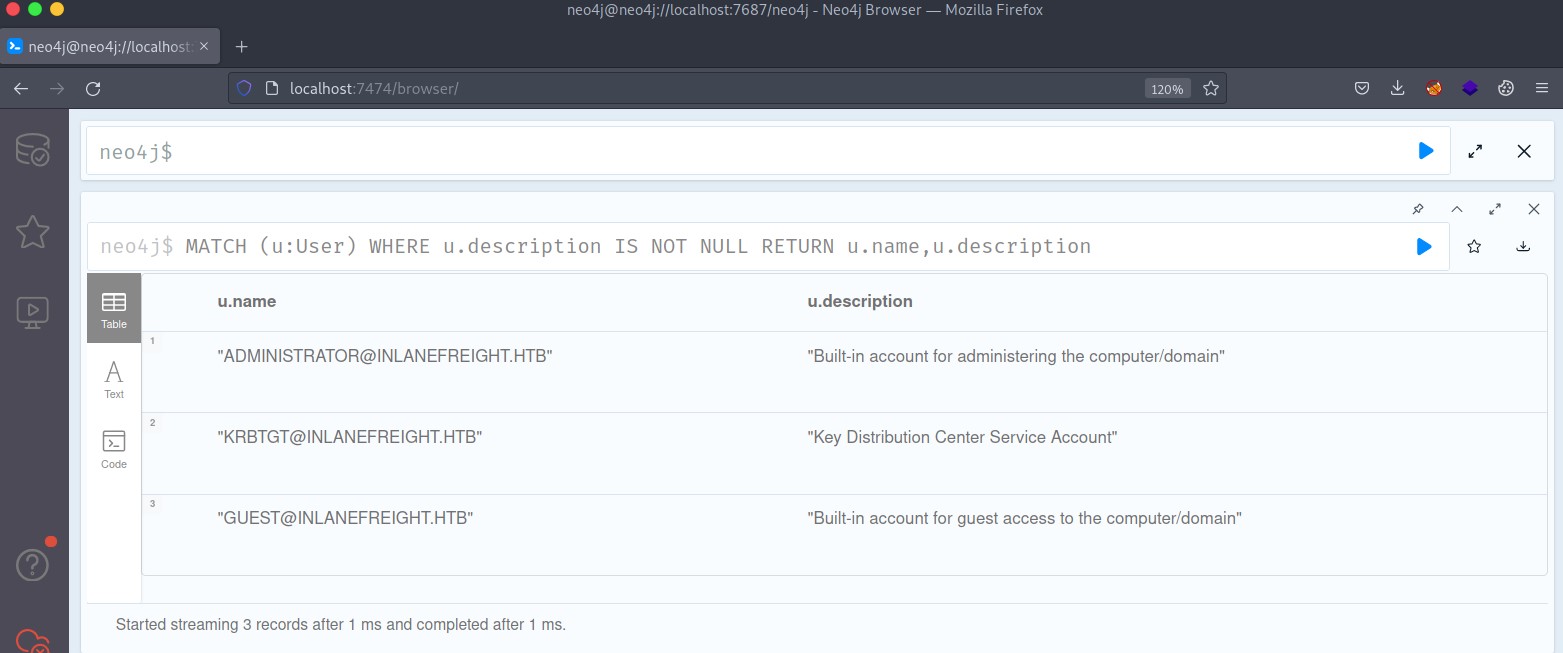
Run this from the Neo4j browser at
http://localhost:7474if BloodHound doesn't display tabular results.
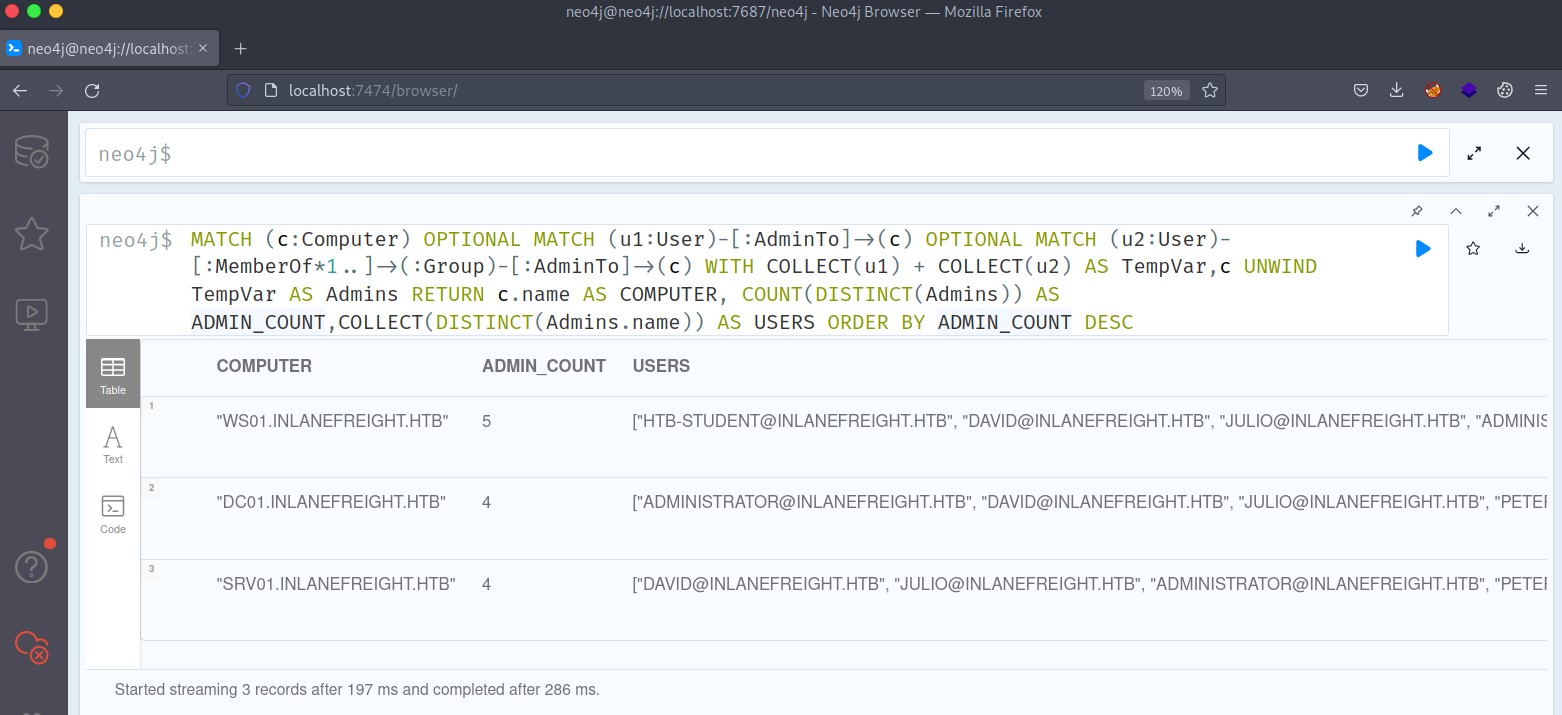
Find all local admins per machine (great for client reporting):
MATCH (c:Computer)
OPTIONAL MATCH (u1:User)-[:AdminTo]->(c)
OPTIONAL MATCH (u2:User)-[:MemberOf*1..]->(:Group)-[:AdminTo]->(c)
WITH COLLECT(u1) + COLLECT(u2) AS TempVar,c
UNWIND TempVar AS Admins
RETURN c.name AS COMPUTER, COUNT(DISTINCT(Admins)) AS ADMIN_COUNT, COLLECT(DISTINCT(Admins.name)) AS USERS
ORDER BY ADMIN_COUNT DESC
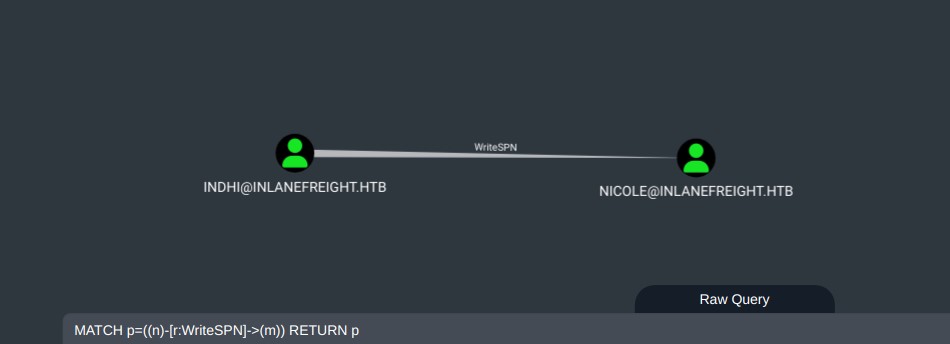
Find any node with a specific edge (replace WriteSPN with any edge you're hunting):
MATCH p=((n)-[r:WriteSPN]->(m)) RETURN p
Find group membership path with regex (case-insensitive):
MATCH p=(n:User)-[r1:MemberOf*1..]->(g:Group)
WHERE nodes(p)[1].name =~ '(?i)itadmin.*'
RETURN p
External Cypher cheatsheets:
- https://hausec.com/2019/09/09/bloodhound-cypher-cheatsheet/
- https://gist.github.com/jeffmcjunkin/7b4a67bb7dd0cfbfbd83768f3aa6eb12
Saving Custom Queries
Config files live at:
- Windows:
%APPDATA%\Roaming\bloodhound\ - Linux:
~/.config/bloodhound/or/root/.config/bloodhound/
The file that matters is customqueries.json. By default it's empty:
{"queries": []}
You can add custom queries by clicking the pencil icon next to Custom Queries in the Queries tab, or editing the file directly.
Example : Search from any owned node to anything (interactive prompt):
{
    "queries": [
        {
            "name": "Search From Owned to Anything",
            "category": "Shortest Paths",
            "queryList": [
                {
                    "final": false,
                    "title": "Select the owned node to search from...",
                    "query": "MATCH (n {owned:true}) RETURN n.name",
                    "props": { "name": ".*" }
                },
                {
                    "final": true,
                    "query": "MATCH p = allshortestPaths((n)-[*1..]->(c)) WHERE n.name = $result AND NOT c=n RETURN p",
                    "allowCollapse": true,
                    "endNode": "{}"
                }
            ]
        }
    ]
}
This query first lists all nodes you've marked as Owned, lets you pick one, then finds all shortest paths from that node to anything in the domain.

If BloodHound is open when you update
customqueries.json, click the refresh icon to reload.
BloodHound for Blue Teams
BloodHound is not just an attacker tool. Blue teams use it to proactively find and remediate misconfigurations before attackers do.
Key insight: If you can identify the attack path, you can break it. BloodHound lets defenders prioritize exactly which ACL misconfiguration or group membership change will remove the most attack paths.
Common defensive use cases:
- Find all paths to Domain Admins and reduce them
- Identify users/groups with dangerous ACL permissions (WriteDacl, GenericAll, Owns)
- Audit which users have local admin rights across the environment
- Detect accounts with passwords stored in description fields
- Map trust relationships that create unexpected attack paths
- Find Kerberoastable accounts (users with SPNs)
- Identify machines where domain users have local admin
Azure Enumeration with AzureHound
As of BloodHound 4.0+, Azure is supported. Data is collected with AzureHound : a Go binary that queries MS Graph and Azure REST APIs.
Running AzureHound
# Username/password (simplest)
.\azurehound.exe -u "user@tenant.onmicrosoft.com" -p "password" list --tenant "tenant.onmicrosoft.com" -o all.json

# Service principal
.\azurehound.exe --app-id "<APP_ID>" --app-secret "<SECRET>" --tenant "<TENANT>" list -o all.json
Import all.json into BloodHound the same way you import SharpHound data.

Note: Azure users can't read all objects by default. If a user doesn't have read rights on a subscription, AzureHound won't enumerate VMs, resource groups, etc. under that scope.
Azure Node Types in BloodHound
Once imported, you can search for Azure-specific nodes: AZUser:, AZVM:, AZKeyVault:, AZSubscription: etc.
Use the Transitive Object Control option on a node to see what privileges your compromised user has across Azure resources.

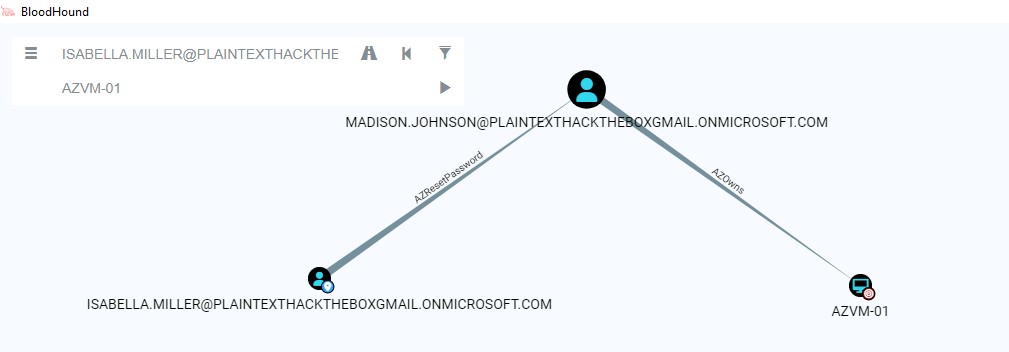
Azure Attack Path Example
BloodHound can surface paths like: User A has Password Administrator → can reset User B's password → User B has contributor access to a Key Vault → secrets can be extracted.
Useful tools for Azure post-exploitation after BloodHound analysis:
- PowerZure : PowerShell framework for Azure exploitation (similar to PowerView but for Azure)
AzPowerShell module : Microsoft's official Azure management moduleAzureADPowerShell module : Azure AD management
PowerView : Fallback When BloodHound Misses ACLs
When a compromised user shows no paths in BloodHound (especially with older versions missing Self privileges), use PowerView to manually check what ACLs that user has:
Import-Module .\PowerView.ps1
Get-DomainObjectAcl -Identity username -Domain corp.local -ResolveGUIDs
Then take the GUIDs and cross-reference them manually, or add them to BloodHound data.
Further Reading
- BloodHound Official Documentation
- The Dog Whisperer's Handbook (ERNW) : deep dive into BloodHound internals
- PrebuiltQueries.json on GitHub : all built-in queries
- Neo4j Cypher Cheat Sheet